For team leads
Follow your team, build learning journeys and shape what good looks like.
On this page
Team leads and organisation admins get a team area next to their own learning.
Team overview
Team overview has 2 tabs: Outcomes shows how people are doing, and Usage shows practice minutes for your whole organisation. You can open each member, and see exam results under Exam results.
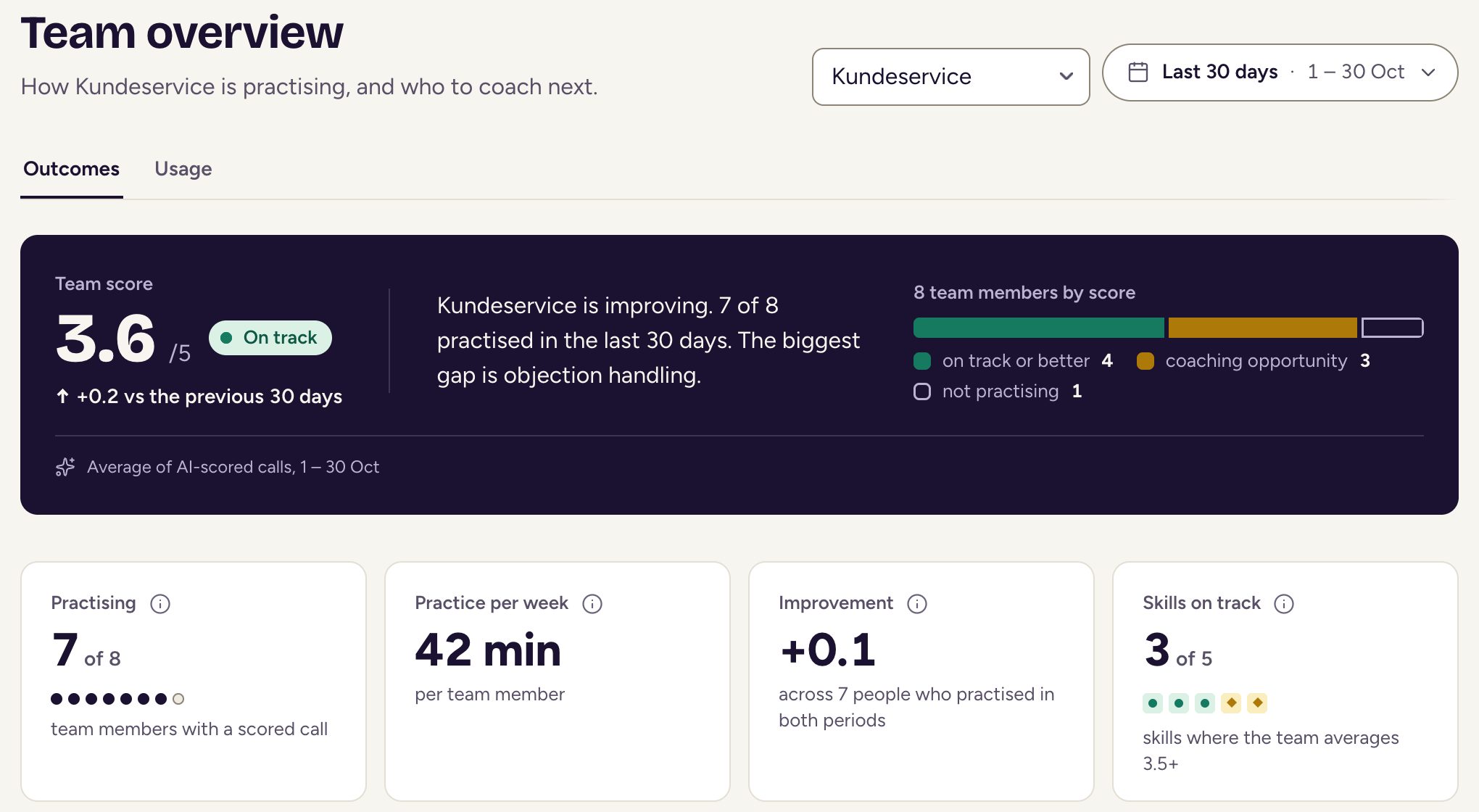
Coach first says what to work on now: the skill with the biggest gap, or someone whose score is dropping. Open it to see the people behind it and assign them a journey that trains the skill.
Members
Members shows one team at a time. This week shows your weekly goal and who has practised. Each person’s row shows their calls, score and weakest skill. Needs attention filters to people who are below average, dropping or quiet.
- Remind nudges someone who hasn’t practised this week. You can remind everyone who hasn’t started in one go.
- Change goal sets how many practice calls each person aims for, Monday to Sunday. It starts later, so nobody’s week changes halfway through, and the team is told.
Reading a call
In Coach first, open the people behind a skill, choose Show evidence on a person, then Open call.
- Skills on this call shows each score with its AI rationale. Choose Agree or Disagree, and say what the AI missed if you like. Ratings are private: the learner doesn’t see them. They feed Team leads agree under Skills.
- Product facts checks what was said against your approved facts. Wrong statements show the right fact and its source. See Knowledge.
Creating a journey
Use Create journey to build one in 6 steps: who it’s for, what they practise, the customer, the skills to score, the level and context, then review. Use Try it out before you assign it.
Assigning a journey
Choose Assign people on a journey, select the people who don’t have it and assign it to them. It appears in their Journeys at once, with a notification. Remove takes it away again, and finished calls stay in their history.
Exam results
Under Exam results, choose an exam to see who has passed, who hasn’t and who hasn’t started. Choose View attempt for the feedback, transcript and each requirement, marked Met or Not met. To give someone their attempts back, choose Reset attempts.
Skills
Under Skills, you set what each score level means for your organisation. That way, feedback reflects how your team works. See Skills.
Knowledge
Under Knowledge, you can upload documents, approve the facts they contain and describe your organisation under About. This keeps practice close to how you really work. See Knowledge.
Share links
Share links let someone without an account try one practice call. You choose when the link expires and how many times it can be used.
Updated