Dashboard and teams
Start from the dashboard, then go from a team to an agent to a single call.
On this page
The dashboard shows how calls are going and what needs attention. From there, you can go as deep as you need.
The dashboard
The Dashboard has 3 tabs:
- Overview: results, plus what needs attention.
- Skills: how each skill is doing across calls.
- Contact reasons: why customers are calling.
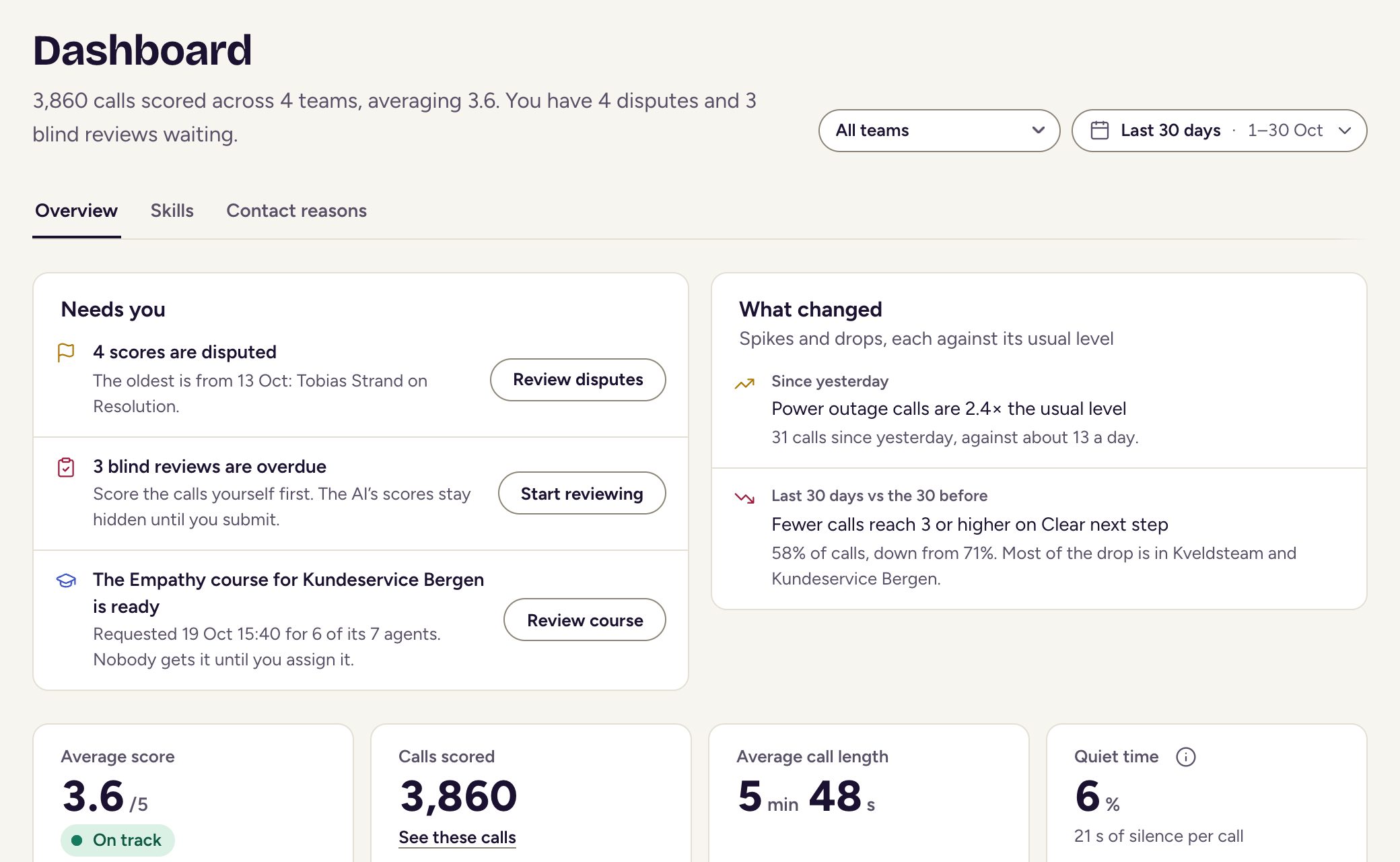
On Overview, these 2 cards tell you where to look first:
- Needs you appears when work is waiting for you, such as disputes, blind reviews and courses that are ready.
- What changed points out call-volume spikes and skill drops compared with your usual level.
The Skills tab
The Skills tab shows each skill’s average, the share of calls that scored 3 or higher and how that share changed. Select a skill to see its teams, agents and calls. Checks follow with their pass rates.
Below them are patterns found by AI, team trainings and the agents with the lowest averages. Clients don’t see this tab.
Filters
Use the filters at the top of the dashboard to change what you see:
- Team: one team, or all of yours.
- Period: this week, last 30 days, all time or a range you pick.
- Queue: narrows the Contact reasons tab to one queue.
From team to agent to call
- Open a team from the dashboard’s Teams section.
- Choose an agent to see their skills compared with the team.
- Open the Calls tab and pick a call to read it with its evidence.
An agent’s page has 3 tabs:
- Overview: their average, skills and checks against the team, open disputes and training.
- Calls: their calls, with search.
- Training: their courses, and the impact each one had.
Comparing teams
On the Teams page, choose Compare teams to put 2 or more teams side by side. Sort by Biggest gap first to see where they differ most.
Calls and agents
The Calls list lets you find the calls you have access to. Search by call ID, external ID, agent or queue, or choose Filters to narrow by team, agent, queue, topic or score. Turn on Show unscored calls to include calls with no score.
Choose Export CSV to download every call that matches your filters, newest first. Choose CSV columns first to pick what the file holds, such as the AI summary, sentiment or talk figures. Scores are blank for calls that wait for your blind review.
The Agents list shows agents with a scored call in the selected period.
Clients see the Overview and Contact reasons tabs and calls, but not Needs you. The Teams and Agents pages are for managers and admins.
Weekly email briefing
Managers and admins can get one email every Monday morning. It covers last week’s calls across the company in one sentence, three numbers and what to look at.
Turn it on when the dashboard offers it, or later from your menu under Weekly email briefing. Use the Send me the briefing switch to turn it off. Changes save straight away.
Updated